Showing posts with label eBay help. Show all posts

How to cancel an eBay order which buyer has not paid

Many a times, sellers on eBay have to face the bitter truth when the buyer doesn't pays for the item. It is really annoying because there's one item in your resources to hang on and secondly the final value fee gets charged when an item is sold. But don't worry eBay lets you fix this problem as well.

1. Login to your eBay account and go to this Resolution Center.
2. In Resolve a problem, select on "I haven't received my payment yet" under I sold an item, click continue.

3. In next page you will be asked to enter the item number, click on the Look up beside Don't know.

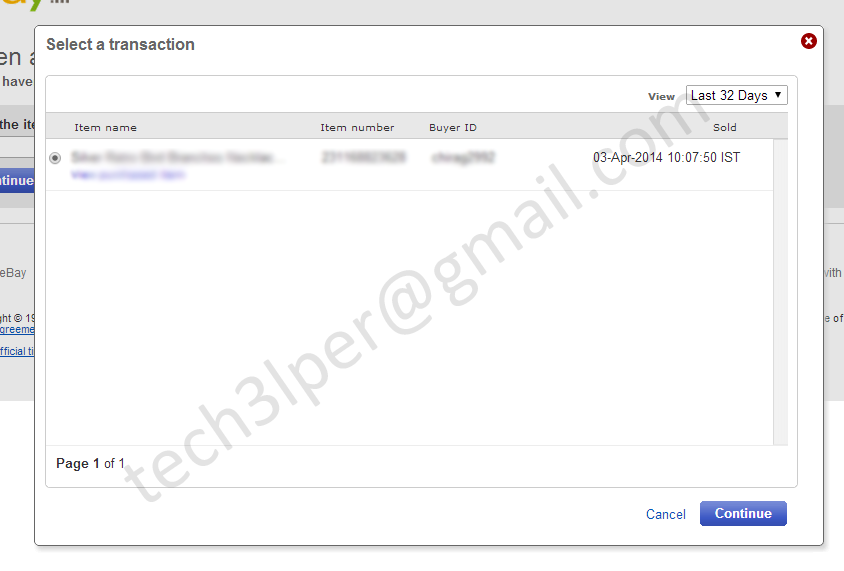
4. From the open window, choose the item the buyer hasn't paid and click Continue.
5. On next page, you will be asked to Review case details and submit it, click on Submit.
6. The unpaid item dispute will be opened, if the buyer doesn't pays in next 3-4 days you can visit the Resolution center and close the dispute and receive the final value fee back.

Hope that it was helpful, if any other assistance is needed regarding anything on eBay or other stuff message me: tech3lper@gmail.com.
Read More

How to add faq page on eBay or eBay store

It is important for some sellers to put up a FAQ page for their buyers to avoid unnecessary messages, mails and calls. It can also help in letting the buyers know about few other policies you hold in accordance of your eBay store.

If you don't know how to put up FAQ page to your eBay store then follow these simple steps to get you going.

1. Login to your eBay account.
2. Go to My eBay.
3. Hover the mouse over Account, a drop down menu will appear. Click on Manage My Shop.

4. On left hand menu bar, under Shop Design click on Custom Pages.

5. Below Custom Page heading you will see Active Pages list which would probably be empty. Click on Create New Page.

6. In the next page, you will see different types of layouts of the page being displayed. Scroll down and choose Frequently Asked Questions and click Continue.

7. Add the Page Title in the next page for your Frequently Asked Questions, it can be anything you want. Many users like to keep it as "FAQ". You can also choose if you want the left navigation bar to be showed or hidden, do it according to your wishes (I would show it as the buyers will have access to my Shop categories from here as well). Providing the questions and answers in the Frequently Asked Questions is done from the second tab below Page Title. Click on Create and edit link to go to another page where you can add your questions and answers.
8. In Manage your Q&A for buyers, add and remove questions and list them under the category they belong to like shipping, item details, etc. After you are done adding the questions and answers click on Submit button.

9. Now click on Shop's custom FAQ page. You will be taken back to Provide content page.

10. Click on Continue.
11. Review the content you provided, if it's ok then click Save and Publish.

You can see the FAQ page in your Shop's left menu bar as well. I hope this was of some help to you, if you need any help in making your eBay shop look more good  and appealing then contact me for designing a whole new template for your listings.
Read More

How to upload a profile picture on eBay

So, this is the first post of the year 2014 & here I am wishing Happy New Year to all the friends and followers of YourTech3lp! 

Customizing your eBay profile is very simple and easy. The following steps are to help you uploading a profile picture and for your eBay store or profile. The normal dimension used for eBay profile picture or store picture is 150 pixels wide x 150 pixels tall, the maximum size of the picture or image can be 5 mb.

1. Login to your eBay account.
2. Take the cursor to the top left corner of the eBay window where Hi, XYZ! is written. Now hover the cursor on it and a drop-down menu will come. From the menu click on your eBay profile name (in example XYZ).


3. To change display picture or profile picture click on Edit Profile button.

4. When you click on Edit profile button, small pen icons appear as you can see in the image below.
5. Click on the pen icon beside your profile name, which will open another drop down.
6. Click on Change Photo and browse for the profile picture which you want to be displayed on eBay profile picture and click Open.

After your chosen picture is opened it shall display on the profile picture area on eBay.

Hope the tutorial was helpful. For more updates on website development, ecommerce help and blog tutorials sign up for the newsletter by submitting your email on the top right Signup form.

Stay Blessed. For any help mail me at tech3lper@gmail.com
Read More

How to enter shipping details in eBay for buyers

If you just started selling on eBay India and don't know how to enter the shipping details of the order you received then I did this tutorial step by step for you.


1. Login to the eBay dashboard.
2. Click on My PaisaPay on top right menu bar.
3. Click on Sold with PaisaPay.

4. Here you will see the transactions made by the buyers for you. Click on Enter Shipping Details.

5. Now scroll down and input the fields with the courier name of the company you have sent the product or item with, it's airway bill or docket or tracking number and a remark for your buyer such as "Leave a feedback after you receive the item".
6. Press Submit.


If you are an eBay seller and looking for someone to design your eBay listing templates at good price then buzz me at tech3lper@gmail.com
Read More

How to register for eBay PaisaPay seller account

Log into your eBay account.
Click on My PaisaPay on the top right.


Click on Register now below PaisaPay seller registration status.
Now fill in all the required details and click on Register>.
And done!! You should see the following message on the next page on the successful registration for the PaisaPay seller account.


If you have any problem regarding any technical or general things of eBay or anything else, then do email me and I promise to answer all the queries as fast as I can. Email: tech3lper@gmail.com


Read More

What is eBay PaisaPay

eBay is the largest online marketplace where you buy, you sell, you bid, you win, you lose, you do everything you wish to on but with guidance of terms and conditions of each term used. eBay is a consumer-to-consumer marketplace where you can find everything from new to used. It is easy to buy and it is easy to sell on eBay. eBay is available internationally.

In India eBay has been around since 2004, and it has been growing and expanding accordingly in all the aspects as an online marketplace.

What is PaisaPay?
PaisaPay is eBay's online payment processing service, where buyers can pay sellers through credit card, debit card and online bank transfer using PaisaPay system which runs on the Indian banking and credit card infrastructure.

PaisaPay is available in different countries with some different names, we are not talking about PayPal as it is totally different thing. PaisaPay is not complex and doesn't need much of your time for your registration. Follow the steps given in our tutorial and you will have an active PaisaPay account.

For any problem or troubleshooting contact me at tech3lper@gmail.com


Read More

Gallery

About

Your one stop solution for various queries about anything and everything you can think of. Drop an email to me asking your question about anything. Email me at: tech3lper@gmail.com
Register your domain name before anyoneelse does
Advertise here
 Advertise here

Blog Archive

Designed By SBT